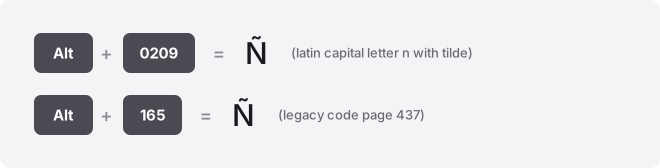
The enye is Ñ (uppercase) and ñ (lowercase). On Windows, hold Alt and type 0209 for Ñ or 0241 for ñ on the numeric keypad. On Mac, press Option+N, then N for ñ, or Option+N then Shift+N for Ñ.
Quick reference: Enye codes
| Character | Unicode name | Code point | Windows Alt code | Mac shortcut | Word Alt+X | HTML |
|---|---|---|---|---|---|---|
| Ñ | U+00D1 | U+00D1 | Alt+0209 | Option+N, Shift+N | 00D1 then Alt+X | Ñ |
| ñ | U+00F1 | U+00F1 | Alt+0241 | Option+N, N | 00F1 then Alt+X | ñ |
Windows: Alt code method
The fastest Windows method uses Alt codes with your numeric keypad. This works in Word, Excel, Outlook, browsers, and most desktop apps.
Steps for typing enye on Windows
- Click where you want the character to appear.
- Make sure Num Lock is on.
- Hold the Alt key.
- On the numeric keypad, type 0241 for lowercase ñ or 0209 for uppercase Ñ.
- Release Alt. The character appears.
The leading zero matters. Alt+0241 reads from the Windows-1252 character table, which covers Western European letters reliably. Alt+0241 without the zero reads from code page 437, the older DOS table, and produces a different character (±) instead of ñ.
Laptops without a dedicated numeric keypad need a different approach. Most compact keyboards lack the numpad entirely, so Alt codes won’t work.
Use the emoji panel (Win+period) and search for “tilde n,” or paste the character from this page. You can also set up an AutoHotkey script or Windows text replacement if you type enye frequently.
Windows emoji panel alternative
Press Win+period or Win+semicolon to open the emoji and symbols panel. Switch to the symbols tab (Ω icon), then scroll or search for the enye. This method works on any Windows 10 or 11 device, including laptops and tablets.
Mac: Option key shortcuts
Mac uses a two-keystroke sequence. Press Option+N to activate the tilde accent, then type the letter you want underneath it.
- Hold Option and press N. A highlighted tilde (~) appears.
- Type N for lowercase ñ, or Shift+N for uppercase Ñ.
- The accented letter replaces the tilde.
This works in all macOS apps—TextEdit, Pages, Mail, browsers, and messaging apps. The same Option+N sequence works with other vowels if you need ã, õ, or similar tilde-accented letters, though Spanish only uses ñ regularly.
If the Option+N shortcut doesn’t produce the tilde accent, open System Preferences → Keyboard → Input Sources and verify that your input source is set to U.S. or a Latin-script keyboard layout. Some non-Latin layouts reassign Option combinations.
Microsoft Word, Excel, and PowerPoint
Word offers three routes: the Windows Alt code (Alt+0241), the hexadecimal Alt+X trick, and the Insert Symbol menu. Alt codes and Alt+X work in Word and Outlook. Excel and PowerPoint support Alt codes and Insert Symbol, but not Alt+X.
Word Alt+X method
Type 00f1 for lowercase or 00d1 for uppercase, then immediately press Alt+X. Word converts the hex code into the character. This only works in Word, Outlook, and OneNote, not Excel, PowerPoint, or other Office apps.
Insert Symbol (all Office apps)
Go to Insert → Symbol → More Symbols. In the Character code box, type 00F1 and verify the “from” dropdown says Unicode (hex).
Click Insert. Once you’ve inserted enye this way, it appears in the Recently used symbols list for faster access next time.
Excel formula alternative
Type =UNICHAR(241) in a cell for lowercase ñ or =UNICHAR(209) for uppercase Ñ. Press Enter.
The formula returns the character. Copy the cell and paste as values elsewhere if you need the letter without the formula.
AutoCorrect for frequent use
Set up an AutoCorrect entry so Word replaces a shortcut like ~n with ñ automatically. Go to File → Options → Proofing → AutoCorrect Options. In the Replace box, type ~n (or another trigger you’ll remember).
In the With box, paste ñ. Click Add, then OK. Now typing ~n followed by a space produces ñ instantly across all Office apps that sync AutoCorrect settings.
Google Docs and Google Sheets
Google Docs uses Insert → Special characters. Click the menu, then search for “tilde” or draw the ñ shape in the drawing box.
The character picker shows all matches. Click ñ to insert it.
Google Sheets has no Insert Special Characters menu. Use =UNICHAR(241) in a cell for ñ or =UNICHAR(209) for Ñ, then copy and paste the result where needed.
Alternatively, press F2 to enter edit mode in a cell, then use your operating system’s input method. Ctrl+Shift+U on Chromebook, Alt codes on Windows, or Option+N on Mac if you’re using a browser on those platforms.
For recurring use, type the character once and save it in a Google Keep note or a pinned Doc. Copy-paste is faster than navigating menus every time.
iPhone and Android
Mobile keyboards surface accented letters through a long-press gesture. Tap and hold the N key on the virtual keyboard.
A row of accented variants appears, including ñ and Ñ. Slide your finger to the one you want and release.
If ñ doesn’t appear when you long-press N, your keyboard language settings might not include Spanish. On iPhone, go to Settings → General → Keyboard → Keyboards → Add New Keyboard, and add Spanish.
On Android, open your keyboard app’s settings (usually Gboard or Samsung Keyboard), go to Languages, and enable Spanish. You don’t need to switch keyboards while typing—the long-press menu will now show Spanish accents even when your active language is English.
Some third-party keyboards like SwiftKey and Gboard offer bilingual modes that predict Spanish and English words simultaneously. This keeps ñ accessible without language-switching.
Chromebook and Linux
Chromebook and most Linux distributions use Ctrl+Shift+U followed by the Unicode hex code. Press Ctrl+Shift+U together, release them (an underlined u appears), then type 00f1 for ñ or 00d1 for Ñ.
Press Space or Enter to complete the input.
ChromeOS has no Alt code support. Plugging in a USB numeric keypad doesn’t add that feature, because Alt codes are Windows software, not hardware. The Ctrl+Shift+U method is the direct keyboard equivalent on Chrome devices.
Newer Chromebooks also offer the Quick Insert panel. Press Launcher+Shift+Space (or the dedicated Quick Insert key if your model has one) to open a symbol picker.
Search for “enye” or “tilde n. ” Some web forms intercept Ctrl+Shift+U, so the symbol picker is a reliable fallback.
Notion, Slack, Discord, and Canva
These apps rely on your operating system’s input methods. Use Alt codes on Windows, Option+N on Mac, Ctrl+Shift+U on Chromebook, or paste the character from this page or a saved note.
Notion supports inline LaTeX for math symbols but not for accented letters, so the OS method or paste is your only route. Slack and Discord both support text replacement if you set it up in your system preferences, on Mac, go to System Preferences → Keyboard → Text and create a shortcut like ~n that expands to ñ. That replacement works across all apps, including web-based ones.
Canva text boxes accept pasted characters without issue. Copy ñ from this page or type it in another app, then paste into your Canva design. There’s no Insert Symbol menu in Canva, so paste is the simplest method.
HTML and web development
HTML supports numeric character references. Use ñ (decimal) or ñ (hex) for lowercase ñ, and Ñ or Ñ for uppercase Ñ.
The lowercase version has no named entity, so numeric references are required.
In CSS, escape the character as \00F1 for ñ or \00D1 for Ñ. This matters in generated content or font-family fallback strings where special characters might not render correctly.
For JavaScript strings, you can use Unicode escapes: “\u00F1” for ñ and “\u00D1” for Ñ. Modern editors generally handle UTF-8 without issue, so typing the character directly in your source file is fine as long as your document encoding is set to UTF-8.
Precomposed characters and Unicode normalization
The enye you see on this page is a precomposed character. Unicode stores Ñ as a single code point (U+00D1) rather than a base N plus a combining tilde. This is the standard form for Spanish text.
It’s possible to construct a visually identical ñ by typing U+006E (lowercase n) followed by U+0303 (combining tilde). The two forms look the same on screen but behave differently in search, sorting, filenames, and forms. A search for “señor” using the precomposed ñ won’t match “señor” built with a combining tilde unless the application normalizes both strings to the same form.
Most typing methods produce the precomposed form by default. Combining marks usually appear only when someone manually constructs the character from Unicode components or when data gets corrupted during encoding conversion. If you copy text from the web and ñ stops working in searches or sorts, check for decomposed forms and normalize the text using your editor’s Unicode normalization feature (NFC form).
Troubleshooting enye input and display
If Alt+0241 produces nothing, verify Num Lock is on and that you’re using the numeric keypad, not the number row above the letter keys. Laptop keyboards without a dedicated keypad can’t use Alt codes, switch to the emoji panel or paste the character instead.
A rectangle (□) or question mark (? ) instead of ñ means the active font lacks the glyph. Nearly all modern fonts include ñ because it’s part of the basic Latin-1 Supplement block.
Very old or decorative fonts might omit it. Change to a standard font like Arial, Calibri, Times New Roman, or any system default.
On Mac, if Option+N does nothing, check your keyboard input source. Non-Latin layouts and some international setups reassign the Option key combinations. Add U.S. or ABC as an input source, or use the Character Viewer (Ctrl+Cmd+Space) to browse and insert accented letters.
Web forms sometimes block Ctrl+Shift+U on Chromebook because the shortcut conflicts with site scripts. Use the Quick Insert panel (Launcher+Shift+Space) or paste from a note instead.
What enye is used for
Spanish uses ñ as a distinct letter, not an accented variant of n. It represents a palatal nasal sound, like the “ny” in “canyon.” Words like año (year), mañana (tomorrow), and señor (mister) require ñ for correct spelling and pronunciation.
The letter appears in Galician, Asturian, Basque, and several indigenous languages of the Philippines and Latin America. Omitting the tilde changes meaning: ano (without the tilde) means “anus” in Spanish, while año means “year.” Spelling it wrong isn’t just incorrect, it can be embarrassing.
In computing and branding, companies and products with Spanish names need ñ to preserve their identity. Replacing it with a plain n is technically misspelling the name, though many systems still accept n as a fallback when technical limitations prevent proper display.
Related symbols and accented letters
Ñ is the only commonly used letter with a tilde diacritic in modern European languages. Portuguese uses tildes over vowels (ã, õ) to indicate nasalization, but the tilde-n is uniquely Spanish. Accented letters like é, ü, and ç use different diacritics and have separate typing methods.
Don’t confuse ñ with ø (slashed O) or ß (German eszett). Those are distinct letters from other languages.
The umlaut (ä, ö, ü) and macron (ā, ē, ī, ō, ū) marks sit above vowels and change pronunciation in different ways. Each has its own Alt code and Mac shortcut.
If you’re working with multiple accented letters regularly, consider installing the U.S. International keyboard layout on Windows or enabling the ABC Extended layout on Mac. Both let you type accents with simpler key sequences across dozens of characters.
Related guides and tools
Browse the full accented letters category for dozens more typing guides. The complete accented letters guide covers every major diacritic and layout option in detail. Use the accent keyboard tool to find codes and shortcuts for any accented character instantly.
Frequently asked questions
Why does my enye sometimes not work in searches or filenames?
You likely have a decomposed ñ built from a base n plus a combining tilde (two Unicode code points) instead of the standard precomposed single character. Copy the correct precomposed form from this page, or use your editor’s Unicode normalization feature to convert the text to NFC form. Search engines and file systems expect the precomposed version.
Can I use Alt+0164 for ñ on Windows?
Alt+0164 produces ñ in code page 437, the legacy DOS character table. It works in some older programs and the Windows Command Prompt, but modern apps use Windows-1252 or Unicode, where Alt+0164 produces a different symbol. Stick with Alt+0241 for reliable results in Word, browsers, and other current software.
Is there a keyboard shortcut for enye in Google Docs?
Google Docs has no built-in enye shortcut. Use your operating system’s method. Alt+0241 on Windows, Option+N then N on Mac, or Ctrl+Shift+U 00f1 on Chromebook, or set up a system-wide text replacement that works in all apps.
You can also use Insert → Special characters and search for “tilde. “
Do I capitalize ñ in Spanish titles and headings?
Yes. Spanish capitalizes ñ as Ñ in titles, proper nouns, and the start of sentences, just like any other letter.
Use Alt+0209 on Windows or Option+N then Shift+N on Mac for uppercase Ñ. The tilde stays in place regardless of case.
Why doesn’t my keyboard have an enye key?
Standard U.S. and U.K. keyboards omit ñ because it’s not part of the English alphabet. Spanish keyboards include a dedicated ñ key between L and Enter. On non-Spanish layouts, use the Alt code, Option shortcut, or long-press on mobile to access the character without changing your entire keyboard layout.
What’s the difference between a tilde and an accent mark?
A tilde (~) is the wavy line that appears over ñ in Spanish. An accent mark usually refers to the acute accent (´), like the one over é.
They’re different diacritics with different names and uses. Calling ñ “n with an accent” is technically imprecise—it’s “n with a tilde”, but most people understand what you mean either way.
Can I type enye on a standard English keyboard without changing settings?
Yes. On Windows, use Alt+0241 without installing anything. On Mac, use the built-in Option+N sequence.
Both methods work immediately on English keyboard layouts. Mobile devices support long-press regardless of your primary language, though adding Spanish to your keyboard list expands the accents available.