The Japanese yen symbol is ¥ (Unicode U+00A5). Copy it from the button below, or type it: on Windows hold Alt and type 0165 on the numeric keypad; on Mac press Option + Y. Both drop the ¥ sign straight into your text.
Its official Unicode name is YEN SIGN, and it lives in the Latin-1 block at code point U+00A5. The same glyph is used for the Japanese yen and, in most contexts, the Chinese yuan, so which currency it means comes from the surrounding text rather than the symbol itself.
How to type the Japanese yen symbol on any device
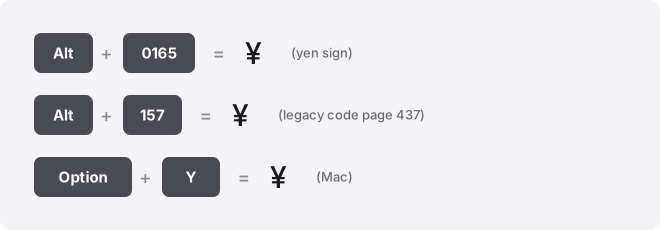
Every verified code for the ¥ sign is in the table below. The Alt code column is decimal and the Unicode column is hexadecimal, so do not carry one into the other.
| Property | Value |
|---|---|
| Symbol | ¥ |
| Unicode name | YEN SIGN |
| Code point (hex) | U+00A5 |
| Windows Alt code (decimal, reliable) | Alt+0165 |
| Windows Alt code (decimal, Unicode-aware apps) | Alt+0165 |
| Word / Outlook / OneNote (hex) | 00A5 then Alt+X |
| Mac shortcut | Option + Y |
| Chromebook / Linux (hex) | Ctrl+Shift+U then 00a5 |
| Excel / Google Sheets | =UNICHAR(165) |
| HTML entity (named) | ¥ |
| HTML entity (decimal) | ¥ |
| HTML entity (hex) | ¥ |
| CSS escape | \00A5 |
Windows
Hold Alt, type 0165 on the numeric keypad, then release Alt. The leading zero matters: it reads from the Windows-1252 table and gives ¥ on any Windows machine. Alt+0165 without the zero works only in Unicode-aware apps.
You may also see the legacy code Alt+157 quoted. Skip it.
It reads from your OEM code page, so it produces ¥ on US machines (CP437) but a different character (Ø) on UK, Irish, Canadian, and Australian machines (CP850). Alt+0165 is the one that behaves the same everywhere.
Alt codes need a physical number pad. No keypad?
Open the emoji panel with Win + . and search “yen,” or use Character Map (search it in the Start menu) and copy from there.
Mac
Press Option + Y. That is a built-in shortcut on the standard US and most Western layouts, so nothing needs enabling. Mac has no Alt codes, so ignore any Windows number sequence here.
If Option + Y is mapped to something else on your layout, open the Character Viewer with Ctrl + Cmd + Space, search “yen,” and double-click the ¥.
Word, Outlook, and OneNote
There is no ready-made ¥ shortcut in Word, but the Alt+X trick is quick: type 00A5, then press Alt+X, and the four characters flip into ¥. That value is hexadecimal, not an Alt code. The same trick works in Outlook and OneNote.
You can also go to Insert → Symbol → More Symbols and pick the yen sign, or set up an AutoCorrect entry so a shortcut like (yen) expands to ¥.
Excel and Google Sheets
Alt+X does not work in either app. Use the formula =UNICHAR(165) to return ¥ in a cell, then paste as values if you want plain text. Excel also has Insert → Symbol.
Google Sheets has no Insert Symbol menu at all, so =UNICHAR(165) or a paste are your options. If you paste into a cell using an OS input method, press F2 first to enter edit mode.
PowerPoint and Google Docs
In PowerPoint, use Insert → Symbol and pick the yen sign; the Word Alt+X trick does not carry over. In Google Docs, use Insert → Special characters and either search “yen” or draw the shape in the sketch box to find it.
iPhone and Android
On both, switch to the number and symbol keyboard, then long-press the $ key. A row of other currency symbols pops up, ¥ among them; slide to it and release. On Gboard and the stock iOS keyboard this is the fastest route.
Type it often? Set a text replacement (iOS: Settings → General → Keyboard → Text Replacement; Android: Gboard → Dictionary) so a phrase like yensign expands to ¥.
Chromebook
ChromeOS has no Alt codes, and a USB numpad will not change that. Press Ctrl + Shift + U, type 00a5 (the hex value only, no “U+”), then press Enter or Space. An underlined u appears while you type to confirm input mode.
The symbol picker at Launcher + Shift + Space is the backup, and newer Chromebooks have a dedicated Quick Insert key. If a web field swallows the shortcut, paste the ¥ instead.
Notion, Slack, Discord, and Canva
None of these have a yen shortcut. Paste the ¥ from the button at the top, or lean on an OS-level text replacement so it is always a few keystrokes away. In Discord and Slack you can also type :yen: only if a custom emoji exists — by default there is none, so paste is the reliable path.
Where people use the yen sign
The ¥ sign shows up on price tags and invoices for Japanese goods, in travel budgets and currency-conversion notes, and in forex and trading posts where JPY pairs are quoted. It is common in game economies, product listings for imports, and any spreadsheet tracking yen amounts.
For a full run of other money glyphs, the world currency symbols list collects them in one place.
Symbols the yen sign is confused with
The plainest mix-up is the fullwidth yen sign (¥), a wider version common on Japanese systems and in East Asian text. It sits at a different code point from U+00A5 and looks noticeably broader. For general Western documents, the standard ¥ is the one you want.
People also confuse it with the capital letter Y, since the glyph is a Y with one or two horizontal bars. And because China uses the same symbol for the yuan, ¥ next to a price can mean either currency depending on the region. When it matters, spell out JPY or CNY.
Troubleshooting
It shows as a box or blank. That means the font lacks the glyph, which is rare for ¥ since it sits in the basic Latin-1 range. Switch to a common font like Arial, Segoe UI, or Noto Sans and it will render.
The ¥ key types a backslash. On some Japanese keyboards the yen key doubles as the backslash in code editors and terminals. That is a keyboard-mapping quirk, not a broken symbol; use one of the input methods above to force the actual ¥.
Alt+0165 gives the wrong character. The app may not be Unicode-aware, or you used the legacy Alt+157 on a non-US code page. Use Alt+0165, which reads from Windows-1252 and stays correct everywhere.
Related guides
- Pound symbol (£) copy, paste and type guide
- How to type the euro symbol (€) fast
- How to type the Indian rupee symbol (₹) fast
- Korean won symbol (₩) copy, paste and type guide
- Dollar symbol ($): how to type it on keyboard
- Browse the full currency symbols category, or grab any glyph fast from the copy-and-paste symbols tool.
Frequently asked questions
Is the yen symbol the same as the yuan symbol?
Yes, ¥ is used for both the Japanese yen and the Chinese yuan (renminbi). The glyph is identical, so the currency is inferred from context. Where it could be ambiguous, use the ISO codes JPY or CNY.
Why does Alt+0165 not always work?
Alt+0165 without a leading zero relies on the app being Unicode-aware and on your active OEM code page. Some older programs read it differently. Alt+0165, with the zero, reads from the Windows-1252 table and gives ¥ reliably across apps and regions.
How do I type the yen symbol without a numeric keypad?
Alt codes need the number pad, so on a laptop use the emoji panel with Win + . and search “yen,” or open Character Map and copy the ¥. In Word, type 00A5 and press Alt+X instead.
Does the yen symbol work in usernames and bios?
Yes. ¥ is a standard Unicode character, so it works in most usernames, bios, and display names. A few platforms restrict special characters in handles, in which case paste it into the bio field instead.
What is the difference between ¥ and ¥?
They are two versions of the same sign. ¥ is the standard half-width yen sign (U+00A5) used in Western text, while ¥ is a wider fullwidth version common on Japanese and other East Asian systems. Use the standard ¥ for general documents.
Why does the yen key type a backslash?
On some Japanese keyboard layouts the yen key is mapped to the backslash in code editors and terminals, and some fonts also draw the backslash as ¥. It is a mapping and font issue, not a fault. Use Alt+0165, Option+Y, or the copy button to insert the real symbol.