The acute accent slants up to the right, as in á é í ó ú. On Windows, hold Alt and type a code on the numeric keypad: 0225 gives á and 0233 gives é.
On Mac, press Option+e, release, then type the vowel. Consonants that carry the same mark, like ć ń ś ź, need the routes below.
This page gives every code for all 24 letters that take an acute accent, plus a click-to-copy chart and step-by-step methods for Windows, Mac, Word, Excel, Google Docs and Sheets, phones, Chromebook, and the web. If you also work with other marks, keep the complete guide to typing accented letters handy.
Acute accent codes for every letter
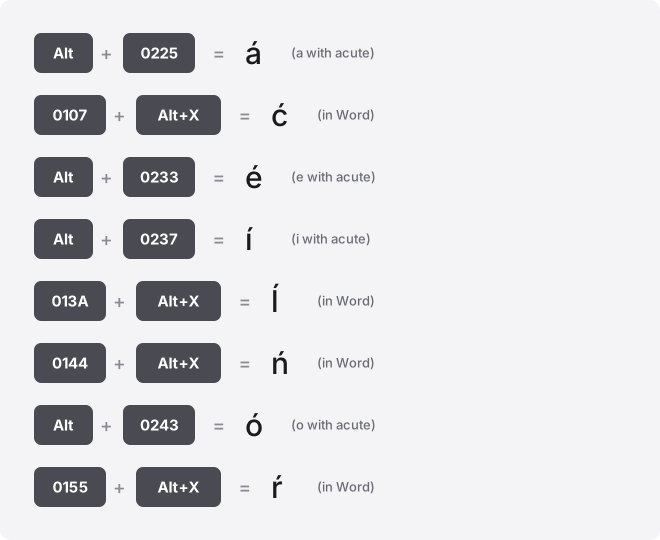
Alt codes take decimal numbers and only work on a numeric keypad. Word’s Alt+X trick takes the hexadecimal code point instead. The two numbers are different, so read the column labels before you type.
| Letter | Unicode name | Code point | Windows Alt code (decimal) | Word (type hex, then Alt+X) | HTML |
|---|---|---|---|---|---|
| á | U+00E1 | U+00E1 | Alt+0225 | 00E1 | á |
| ć | U+0107 | U+0107 | No standard Windows Alt code; Word: 0107 then Alt+X | 0107 | ć |
| é | U+00E9 | U+00E9 | Alt+0233 | 00E9 | é |
| í | U+00ED | U+00ED | Alt+0237 | 00ED | í |
| ĺ | U+013A | U+013A | No standard Windows Alt code; Word: 013A then Alt+X | 013A | ĺ |
| ń | U+0144 | U+0144 | No standard Windows Alt code; Word: 0144 then Alt+X | 0144 | ń |
| ó | U+00F3 | U+00F3 | Alt+0243 | 00F3 | ó |
| ŕ | U+0155 | U+0155 | No standard Windows Alt code; Word: 0155 then Alt+X | 0155 | ŕ |
| ś | U+015B | U+015B | No standard Windows Alt code; Word: 015B then Alt+X | 015B | ś |
| ú | U+00FA | U+00FA | Alt+0250 | 00FA | ú |
| ý | U+00FD | U+00FD | Alt+0253 | 00FD | ý |
| ź | U+017A | U+017A | No standard Windows Alt code; Word: 017A then Alt+X | 017A | ź |
| Á | U+00C1 | U+00C1 | Alt+0193 | 00C1 | Á |
| Ć | U+0106 | U+0106 | No standard Windows Alt code; Word: 0106 then Alt+X | 0106 | Ć |
| É | U+00C9 | U+00C9 | Alt+0201 | 00C9 | É |
| Í | U+00CD | U+00CD | Alt+0205 | 00CD | Í |
| Ĺ | U+0139 | U+0139 | No standard Windows Alt code; Word: 0139 then Alt+X | 0139 | Ĺ |
| Ń | U+0143 | U+0143 | No standard Windows Alt code; Word: 0143 then Alt+X | 0143 | Ń |
| Ó | U+00D3 | U+00D3 | Alt+0211 | 00D3 | Ó |
| Ŕ | U+0154 | U+0154 | No standard Windows Alt code; Word: 0154 then Alt+X | 0154 | Ŕ |
| Ś | U+015A | U+015A | No standard Windows Alt code; Word: 015A then Alt+X | 015A | Ś |
| Ú | U+00DA | U+00DA | Alt+0218 | 00DA | Ú |
| Ý | U+00DD | U+00DD | Alt+0221 | 00DD | Ý |
| Ź | U+0179 | U+0179 | No standard Windows Alt code; Word: 0179 then Alt+X | 0179 | Ź |
Twelve of these letters have no genuine Windows Alt code: ć ĺ ń ŕ ś ź and their capitals. Do not borrow the code point number as an Alt code. For those, use the Word Alt+X method, Character Map, or a paste from the copy chart above.
How the acute accent relates across these letters
The acute accent is a single stroke rising to the right. That direction is what separates it from the grave accent, which leans the other way (à), and from the circumflex (â), tilde (ã), and umlaut (ä). All 24 letters here share the same rising stroke on a different base letter.
Uppercase and lowercase forms are the same letter and the same accent, capitalised. So Á is the capital of á, and Ó is the capital of ó. Each one has its own code point, which is why the table lists both cases separately.
Precomposed letters versus combining marks
Every letter in the table is a precomposed character: one code point that already includes the accent. The letter á is a single unit, U+00E1.
There is a second way to build the same look. You type the plain letter a, then add a combining acute accent (U+0301). On screen the two versions can look identical, but the second one is two code points, not one.
That difference matters in practice. Search boxes, filenames, form validation, and duplicate checks often compare the raw code points, so a precomposed á and a combined a+◌́ can fail to match even though they look the same.
If a search for a name never finds it, this is a likely cause. Running the text through Unicode normalization (NFC) collapses the combined form back to the single precomposed character.
Windows: Alt codes, emoji panel, Character Map
For the vowels, the Alt code is fastest. Hold Alt, type the four digits on the numeric keypad, then release Alt. The leading-zero form in the table is the reliable one; it reads from the modern Western character set.
- á = Alt+0225, é = Alt+0233, í = Alt+0237, ó = Alt+0243, ú = Alt+0250, ý = Alt+0253
- Capitals: Á = Alt+0193, É = Alt+0201, Í = Alt+0205, Ó = Alt+0211, Ú = Alt+0218, Ý = Alt+0221
The row of number keys across the top does not work for Alt codes. You need the separate numeric keypad. On a laptop without one, use the on-screen touch keyboard, the emoji panel, or the browser-based acute accent keyboard tool.
For ć ĺ ń ŕ ś ź and their capitals there is no Alt code. Open the emoji and symbol panel with Win+.
(period), or open Character Map, search by the Unicode name, and copy the letter. The Word method below also covers these.
Mac: Option key and Character Viewer
Mac has no Alt codes. For the acute vowels, use the built-in dead key: press Option+e, let go, then press the vowel.
Option+e then a gives á; Option+e then o gives ó. Add Shift on the letter for the capital.
The dead key covers the standard vowels, not consonants like ć or ś. For those, open the Character Viewer with Ctrl+Cmd+Space, search the letter name, and double-click to insert. You can also add a Polish or Slovak keyboard layout in System Settings if you type those letters often.
Word and PowerPoint
Word has the one method that reaches all 24 letters without a keypad. Type the hex code point from the table, then press Alt+X. It converts in place.
For example, type 015B and press Alt+X to get ś; type 0106 and press Alt+X to get Ć. This also works in Outlook and OneNote.
Prefer a menu? Use Insert → Symbol → More Symbols, then find the letter by its Unicode name. The same Insert → Symbol route works in PowerPoint, which does not support Alt+X. You can also add an AutoCorrect entry so a shortcut like \sacute expands to ś as you type.
Excel and Google Sheets
Alt+X does not work in spreadsheets. In Excel, use the UNICHAR function with the decimal code point: =UNICHAR(225) returns á, =UNICHAR(263) returns ć. Insert → Symbol also works in Excel.
Google Sheets has no Insert Symbol menu. Use =UNICHAR(225) the same way, or paste from the copy chart. If you want to use an OS input method directly in a cell, press F2 first to enter edit mode, otherwise the keystrokes trigger cell navigation instead.
Google Docs
Go to Insert → Special characters. Type the Unicode name or code, or draw the accent shape in the sketch box to filter the results, then click the letter to drop it in. This is the reliable route for the consonant letters that lack an Alt code.
iPhone and Android
On both phones, press and hold the base letter on the keyboard. A small popup shows the accented variants; slide to the acute version and release. Holding a gives á, holding e gives é, and so on.
The long-press popup covers the common vowels well. For letters like ć, ń, ś, or ź, add the relevant language keyboard in settings, or paste from the copy chart. On iPhone you can also set a Text Replacement so a short code expands to the letter.
Chromebook
ChromeOS has no Alt codes, and a USB numpad will not change that. Use the Unicode shortcut instead: hold Ctrl+Shift+U, type the hex code point, then press Enter or Space.
An underlined u appears while you type. Enter only the digits, with no U+ prefix, so 0107 then Enter gives ć.
You can also open the symbol picker with Launcher+Shift+Space; newer Chromebooks have a dedicated Quick Insert key. If a web text field swallows the Ctrl+Shift+U shortcut, paste the letter as a fallback.
Notion, Slack, Discord, and Canva
None of these apps has its own acute-accent shortcut. The dependable method is the same in all four: copy the letter from the chart above and paste it where you need it. Accented letters paste cleanly into titles, messages, and text layers.
If you type a letter often, make it automatic. Slack and Canva both honour your operating system’s text-replacement feature, so a snippet like ;cacute can expand to ć system-wide. Discord and Notion pick up the same OS-level replacements.
HTML and CSS
On the web, the vowels have named entities: á, é, í, ó, ú, ý, plus the capital forms. The consonant letters use numeric entities only, such as ć for ć.
HTML accepts both decimal and hex numeric forms: ć and ć both produce ć. In CSS content values, use the backslash hex escape, for example content: "\0107". Serving the page as UTF-8 lets you paste the letters directly with no entity at all.
Troubleshooting acute accent letters
Letter shows as a box or question mark. The font lacks that glyph.
The common vowels (á é í ó ú) sit in almost every font, but ĺ ŕ ń ś ź are missing from some display and icon fonts. Switch to a broad font like Arial, Segoe UI, or Noto Sans and it appears.
Alt code produces the wrong character or nothing. Two usual causes: you typed on the top-row number keys instead of the numeric keypad, or Num Lock is off. Also remember only the six vowels have Alt codes; there is no code for ć ĺ ń ŕ ś ź.
Wrong accent appears. It is easy to grab a grave (à) or circumflex (â) by accident, since they live next to each other in pickers.
Check the stroke direction: the acute rises to the right. Confusing ć with the cedilla letter ç is also common, and they are different letters with different codes.
The letter looks right but search or matching fails. This is the combining-mark issue from earlier.
The text may be a base letter plus a separate accent rather than the single precomposed character. Normalize the text to NFC, or retype the letter from the copy chart, and matching works again.
Autocorrect keeps changing the word. Editors that do not recognise the accented word may “fix” it. Add the word to your custom dictionary so it stops rewriting.
Where these letters are used
Acute vowels appear in Spanish (café, sí), Portuguese, and Hungarian, and the mark is common across many Latin-script languages. The consonant forms ć ń ś ź show up in Polish names and words, while ĺ and ŕ appear in Slovak. You will also meet them in personal names, place names, and imported product names, which is often why an English keyboard suddenly needs them.
Related symbols
These marks are the ones most often mixed up with the acute accent:
- Grave accent letters (à è ì ò ù) lean the opposite way, up to the left.
- Circumflex letters (â ê î ô û) wear a small peak, not a single stroke.
- Tilde letters (ã ñ õ) use a wavy line above the letter.
- Umlaut letters (ä ö ü) place two dots above, not a slash.
- Cedilla letters (ç) hang a hook below the c, unlike ć which has the accent on top.
Related guides
For the full picture across every mark, read the accented-letter guides, and bookmark the on-screen accent keyboard tool for the letters you type rarely.
Frequently asked questions
Why does á look identical to another á but they do not match in search?
One is a single precomposed code point (U+00E1) and the other is a plain a plus a combining acute accent (U+0301). They look the same but are stored differently. Normalizing the text to NFC makes both the same, so they match.
Why is there no Alt code for ć, ń, ś, or ź?
Windows Alt codes only reach the older character tables, which do not include these letters. Their code point number is not an Alt code and typing it as one gives the wrong result. Use the Word Alt+X method, Character Map, or a paste instead.
Can I type these on a laptop with no numeric keypad?
Yes. Alt codes need a keypad, but the other routes do
not. Use Word’s Alt+X, the Windows emoji panel (Win+.), Insert → Special characters in Google Docs, or paste from the copy chart at the top of this page.
Why does my acute accent turn into a grave or circumflex?
You most likely picked the wrong item from a symbol picker or pressed the wrong dead key. The acute stroke rises to the right; the grave falls to the right, and the circumflex is a small peak. Check the stroke direction and re-select the acute version.
How do I type the capital version, like Á or Ś?
On Windows, use the capital’s own Alt code where one exists (Á is Alt+0193). On Mac, hold Shift when you press the vowel after Option+e. In Word, type the capital’s hex code from the table and press Alt+X. On phones, long-press the capital letter.
Is ć the same as ç?
No. ć is c with an acute accent above it (U+0107), used in Polish and other languages. ç is c with a cedilla hook below it (U+00E7), used in French and Portuguese. They are different letters with different codes and are not interchangeable.
Will these letters break in a filename or URL?
Modern systems accept them, but some older tools, upload forms, or scripts strip or mangle accented letters, especially the combining-mark form. If a filename or link misbehaves, normalize the text to NFC first, or use the plain base letters for the technical name and keep the accented version for display.