The tilde letters are ã ñ õ ĩ ũ and their capitals Ã Ñ Õ Ĩ Ũ. On Windows, hold Alt and type a code on the numeric keypad: Alt+0227 for ã, Alt+0241 for ñ, Alt+0245 for õ.
On Mac, press Option+N then the base letter (Option+N, then a, gives ã). Four of the ten letters have no Windows Alt code and need the Word or Character Map route below.
The tilde (˜) is a wavy mark sitting above a letter. Five base letters carry it in common use — a, i, n, o, u, each with an uppercase and a lowercase form.
That gives the ten characters covered here. This guide gives every code for all of them and shows the fastest way to type each one on Windows, Mac, Word, Google Docs, phones, Chromebooks, and the web.
Tilde letter codes at a glance
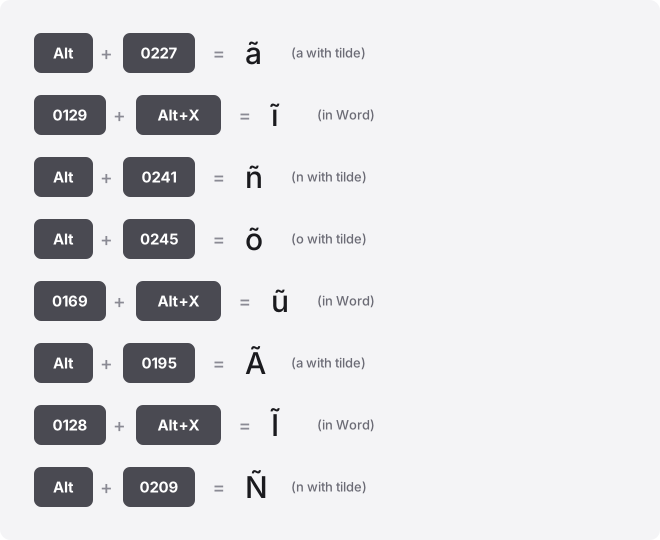
Windows Alt codes use decimal numbers on the numeric keypad. Word’s Alt+X method uses the hexadecimal code point.
These are two different numbers for the same letter, so don’t mix them up. The four letters below with no Alt code sit in a different Unicode block (Latin Extended-A) that the Windows Alt system doesn’t reach.
| Glyph | Unicode name | Code point (hex) | Alt code (decimal) | Word Alt+X (hex) | HTML |
|---|---|---|---|---|---|
| ã | U+00E3 | U+00E3 | Alt+0227 | 00E3 then Alt+X | ã |
| Ã | U+00C3 | U+00C3 | Alt+0195 | 00C3 then Alt+X | Ã |
| ñ | U+00F1 | U+00F1 | Alt+0241 | 00F1 then Alt+X | ñ |
| Ñ | U+00D1 | U+00D1 | Alt+0209 | 00D1 then Alt+X | Ñ |
| õ | U+00F5 | U+00F5 | Alt+0245 | 00F5 then Alt+X | õ |
| Õ | U+00D5 | U+00D5 | Alt+0213 | 00D5 then Alt+X | Õ |
| ĩ | U+0129 | U+0129 | No standard Windows Alt code; Word: 0129 then Alt+X | 0129 then Alt+X | ĩ |
| Ĩ | U+0128 | U+0128 | No standard Windows Alt code; Word: 0128 then Alt+X | 0128 then Alt+X | Ĩ |
| ũ | U+0169 | U+0169 | No standard Windows Alt code; Word: 0169 then Alt+X | 0169 then Alt+X | ũ |
| Ũ | U+0168 | U+0168 | No standard Windows Alt code; Word: 0168 then Alt+X | 0168 then Alt+X | Ũ |
The uppercase and lowercase forms are separate characters with separate codes, not one letter that changes with Shift. Typing Alt+0241 gives ñ; the capital Ñ needs its own code, Alt+0209. This matters when a name or heading calls for the capital, you can’t just shift-hold an Alt code.
Type tilde letters on Windows
The Alt code method is fastest for the six letters that have one. You need a numeric keypad, the number row across the top of the keyboard will not work for this.
- Make sure Num Lock is on.
- Hold the left Alt key.
- Type the code on the numeric keypad, for example 0241 for ñ.
- Release Alt. The letter appears.
Always use the leading-zero form (Alt+0241, not Alt+0241). The zero-less codes read from an older DOS character table and produce different symbols, and that table varies by region. If you’re on a laptop with no keypad, see the guide on typing symbols without a numeric keypad, or use the emoji panel below.
For ĩ ũ Ĩ Ũ, which have no Alt code, press Win + . (Windows key plus period) to open the emoji and symbol panel, click the Ω symbols tab, and search or browse the Latin section. Or open Character Map (search “charmap” in the Start menu), find the letter, and copy it.
Type tilde letters on Mac
Mac has no Alt codes. It uses a dead-key shortcut that works in almost every app.
- Press Option + N. A highlighted ˜ appears.
- Type the base letter. Option+N then a gives ã; then n gives ñ; then o gives õ.
- For a capital, press Shift with the base letter: Option+N, then Shift+N, gives Ñ.
The macOS tilde dead key officially supports a, o, and n. For ĩ ũ and their capitals, hold the base letter key (i or u) to open the accent popover, or open the Character Viewer with Ctrl + Cmd + Space and search “tilde.” Double-click the letter to insert it.
Type tilde letters in Word, PowerPoint, and Outlook
Word has a shortcut that covers every tilde letter, including the four with no Alt code. Type the hexadecimal code from the table, then press Alt + X. The code turns into the letter.
- Type 0169, press Alt+X → ũ
- Type 00F1, press Alt+X → ñ
- Type 0128, press Alt+X → Ĩ
If the character before the code is a letter or digit, select just the code first so Word knows where it starts. Word also has a built-in shortcut for the common ones: Ctrl + Shift + ~ (tilde), release, then the base letter, the same pattern as the Mac dead key.
The same Insert → Symbol → More Symbols menu works in Word, PowerPoint, and Outlook. Pick a font like Calibri or Arial, set the subset to Latin-1 Supplement or Latin Extended-A, and double-click the letter. Alt+X does not work in PowerPoint, so use the Insert Symbol menu there.
Type tilde letters in Excel and Google Sheets
Excel Alt codes work the same as anywhere in Windows: Alt+0241 for ñ on the numeric keypad. Alt+X does not work in Excel. For the four letters without an Alt code, use the UNICHAR function with the decimal value:
=UNICHAR(297)→ ĩ=UNICHAR(361)→ ũ=UNICHAR(241)→ ñ
Google Sheets has no Insert Symbol menu. Use the same =UNICHAR() formula, or type the letter in another app and paste it into the cell. If you’re using an OS input method inside a cell, press F2 first to enter edit mode, otherwise the keystrokes may not register.
Type tilde letters in Google Docs
Google Docs has no Alt-code support, but its special character tool covers every letter here.
- Open Insert → Special characters.
- Type “tilde” in the search box, or draw the accent in the sketch pad on the right.
- Click the letter you want to drop it into the document.
If you type these letters often, set up Tools → Preferences → Substitutions. Map something like ~n~ to ñ and Docs will swap it as you type.
Type tilde letters on iPhone and Android
Both phones use the same trick: press and hold the base letter on the on-screen keyboard.
- Hold n → the accent popover shows ñ. Slide to it and release.
- Hold a → ã appears among the options.
- Hold o → õ appears.
Capitals work the same way once Shift is on. The ĩ and ũ options appear on the i and u hold-menus on most keyboards, though the exact list depends on your active languages. Adding a language such as Portuguese or Spanish in keyboard settings guarantees the tilde options show up.
Type tilde letters on Chromebook
ChromeOS has no Alt codes. A USB numpad won’t help — the feature is Windows software, not keypad hardware. Use the Unicode shortcut instead.
- Press and hold Ctrl + Shift + U. An underlined u appears.
- Type the hex code only, with no U+ prefix: f1 for ñ, e3 for ã, 169 for ũ.
- Press Enter or Space.
Some web text fields swallow the shortcut. If nothing appears, open the symbol picker with Launcher + Shift + Space (or the Quick Insert key on newer Chromebooks), or paste the letter from the copy buttons at the top of this page.
Type tilde letters in Notion, Slack, Discord, and Canva
None of these apps have a symbol menu for accented letters. The reliable method is the same in all four: type the letter using your operating system’s method above, or paste it from the copy buttons at the top of this guide.
For letters you type often, use text replacement so it becomes automatic. On Mac, set it in System Settings → Keyboard → Text Replacement; on Windows, use PowerToys or a phone-synced shortcut.
Slack and Notion also have their own replacement settings. Map a trigger like nnn to ñ once, and it works everywhere in that app.
Use tilde letters on the web (HTML and CSS)
In HTML you can paste the character directly if the page is UTF-8, which nearly all are. If you prefer entities, ã ñ õ have named ones, ã ñ õ, and every letter has a numeric form from the table, such as ĩ for ĩ.
In CSS content values, use a backslash and the hex code point: \00F1 for ñ. The on-screen accent keyboard lets you build a whole string of accented letters and copy it in one go, which is handy for filenames and form fields.
Troubleshooting tilde letters
The Alt code shows the wrong symbol or nothing
Two causes. Num Lock is off, so the keypad isn’t sending digits, turn it on.
Or you dropped the leading zero: Alt+0241 pulls from the old DOS table and can give a different character depending on your region, while Alt+0241 reliably gives ñ. Always keep the zero.
ĩ, ũ, Ĩ, or Ũ won’t type with an Alt code
These four have no Windows Alt code, they sit outside the range the Alt system covers. Use Word’s Alt+X method (type 0129, press Alt+X), the emoji panel (Win + .), Character Map, or paste them from the copy widget.
The letter shows as a box □ or question mark
The font lacks that glyph. The ã ñ õ set is in almost every font, but ĩ ũ Ĩ Ũ are missing from some older or decorative fonts. Switch to a full Unicode font like Arial, Calibri, Times New Roman, or Noto Sans and the letter will render.
Search or filename matching fails even though it looks right
The same letter can be stored two ways: as one precomposed character (ñ, U+00F1) or as a plain n followed by a combining tilde (n + U+0303). They look identical but count as different byte sequences, so a search or filename comparison can miss.
The copy buttons here give the precomposed single-code form, which is what most systems expect. If matching still fails, normalize the text to NFC.
What tilde letters are used for
Ñ appears in Spanish words and names — año, señor, jalapeño. Ã and Õ show up in Portuguese, as in São Paulo and pães.
Ĩ and Ũ appear in some romanized languages and phonetic transcription. Beyond language, the same characters get copied into brand names, headings, and usernames for visual effect.
Related letters and marks
The tilde is one of several marks that sit above the same base letters. These guides cover the ones people most often mix up with it:
- Umlaut letters (ä ö ü), two dots above the letter, common in German.
- Acute accent letters (á é í ó ú), a mark rising to the right.
- Grave accent letters (à è ì ò ù), a mark falling to the right.
- Circumflex letters (â ê î ô û), a small hat above the letter.
- Letters with a cedilla (ç), a hook below the letter.
For the full set of methods across every mark, see the complete guide to typing accented letters, or browse all the accented-letter guides.
Frequently asked questions
Why is the tilde on n a letter but the tilde in a URL is just a symbol?
They are different characters. The standalone tilde in web addresses and code is U+007E, a spacing symbol on the keyboard.
The mark over ñ is bound to the letter as a single character (U+00F1). They look related but aren’t interchangeable.
Why does ñ look fine on my phone but break on my laptop?
Almost always a font issue, not a data issue. The character is stored correctly; the laptop’s chosen font just lacks that glyph or a font failed to load. Change the font to a standard one like Arial or Calibri and it displays.
Is Alt+0164 the same as Alt+0241 for ñ?
On a US machine, the zero-less code Alt+0164 does also produce ñ from the DOS table. But that table varies by region, so it isn’t dependable. Alt+0241 gives ñ everywhere, so use the leading-zero form.
How do I type a capital Ñ instead of lowercase ñ?
Use its own code, Alt+0209 on Windows. Uppercase tilde letters are separate characters with separate codes, holding Shift with an Alt code does not capitalize the result.
Can I add a tilde over any letter, like ẽ or ṽ?
Yes, but not as a precomposed character in this common set. You combine the base letter with the combining tilde U+0303, or use a Vietnamese or IPA keyboard layout that provides the composed forms. Rendering depends on the font supporting that combination.
Why won’t the tilde dead key work for i or u on my Mac?
The default macOS tilde dead key (Option+N) is set up for a, o, and n. For ĩ or ũ, hold the i or u key to open the accent popover, or use the Character Viewer (Ctrl+Cmd+Space) and search “tilde.”
Do these codes work the same in every app?
The OS-level methods (Windows Alt codes, Mac Option keys, Chromebook Ctrl+Shift+U) work in most apps. The Alt+X trick is Word-only and won’t work in Excel, PowerPoint, or Google Docs. When an app has no built-in method, pasting from the copy buttons always works.