The grave accent letters are à, è, ì, ò, ù and their capitals À, È, Ì, Ò, Ù. On Windows, hold Alt and type the four-digit code on the numeric keypad (à is Alt+0224, è is Alt+0232).
On Mac, press Option+` (grave), release, then the letter. Both work in Word, browsers, and most apps.
The grave accent is the mark that leans down to the right, the mirror image of the acute accent. It sits over five vowels in the letters above. Each one is a single precomposed Unicode character, so it has a proper Alt code, an HTML entity, and a code point you can rely on across systems.
Grave accent codes for every letter
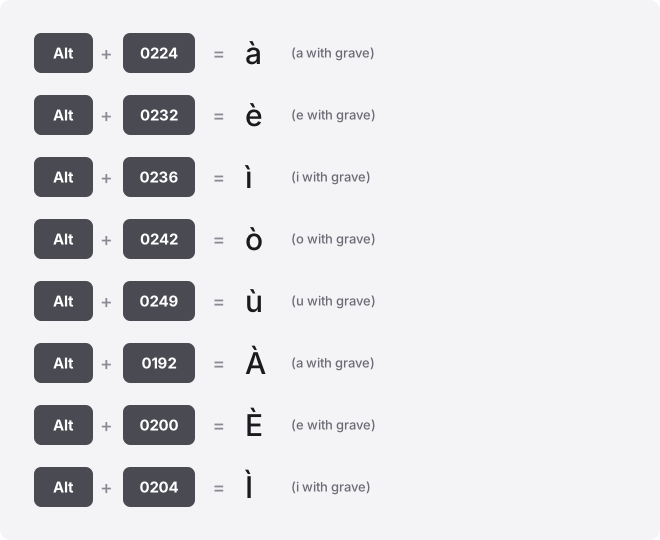
Every grave-accented letter in this set, with its verified codes. The Alt code column is decimal and needs a numeric keypad. The Word column is the hex code you type before pressing Alt+X.
| Glyph | Unicode name | Code point | Alt code (decimal) | Word (hex + Alt+X) | HTML |
|---|---|---|---|---|---|
| à | U+00E0 | U+00E0 | Alt+0224 | 00E0 then Alt+X | à |
| è | U+00E8 | U+00E8 | Alt+0232 | 00E8 then Alt+X | è |
| ì | U+00EC | U+00EC | Alt+0236 | 00EC then Alt+X | ì |
| ò | U+00F2 | U+00F2 | Alt+0242 | 00F2 then Alt+X | ò |
| ù | U+00F9 | U+00F9 | Alt+0249 | 00F9 then Alt+X | ù |
| À | U+00C0 | U+00C0 | Alt+0192 | 00C0 then Alt+X | À |
| È | U+00C8 | U+00C8 | Alt+0200 | 00C8 then Alt+X | È |
| Ì | U+00CC | U+00CC | Alt+0204 | 00CC then Alt+X | Ì |
| Ò | U+00D2 | U+00D2 | Alt+0210 | 00D2 then Alt+X | Ò |
| Ù | U+00D9 | U+00D9 | Alt+0217 | 00D9 then Alt+X | Ù |
The uppercase and lowercase forms are separate Unicode characters, not the same letter with a shift flag. Typing À and à uses different codes, and search and sorting can treat them as distinct unless the system folds case. The accent mark itself is identical on all five vowels; only the base letter underneath it changes.
Type a grave accent on Windows
Use the Alt code. Hold the Alt key, type the four digits from the table on the numeric keypad, then release Alt. The leading zero matters: it tells Windows to read the modern Western character set, which is where these letters live.
- Make sure Num Lock is on.
- Hold Alt.
- Type the code on the numeric keypad, for example 0232 for è.
- Release Alt. The letter appears.
The row of numbers above the letters will not work for this. You need the separate keypad on the right.
Laptops without one have a workaround in our accent keyboard tool, which lets you click each letter and copy it. There is also a keyboard-free route in the guide to typing accented letters across every device.
The other Windows route is the emoji and symbol panel. Press Win+.
(period), click the Ω symbols tab, and pick the Latin section. Character Map (search “charmap”) does the same job and shows the code as you hover.
Type a grave accent on Mac
Mac has no Alt codes. It uses a dead-key sequence built into the keyboard.
- Press Option+` (the grave/backtick key, top-left below Esc). Nothing prints yet.
- Release both keys.
- Type the vowel: a e i o u. It appears with the grave accent.
- For capitals, hold Shift on the vowel: Option+` then Shift+A gives À.
The second Mac method is hold-to-choose. Press and hold a vowel key for about a second and a small menu of accented versions pops up; press the number under the grave version.
If you need the full set, open the Character Viewer with Ctrl+Cmd+Space and search “grave. “
Type a grave accent in Word
Word has its own trick that needs no keypad. Type the hex code from the table, then press Alt+X.
Typing 00E8 and pressing Alt+X turns it into è. The code sits directly before the cursor when you press the shortcut.
This is hex, not decimal, so it does not match the Alt-code column. Alt+X also works in Outlook and OneNote. It does not work in Excel, PowerPoint, or Google Docs.
Two more Word routes: Insert → Symbol → More Symbols lists all ten under the Latin-1 subset, and the built-in shortcut Ctrl+` then the vowel produces the grave form the same way Mac does. The same Insert → Symbol menu works identically in PowerPoint, so you do not need a separate method there.
Type a grave accent in Excel and Google Sheets
In Excel, Alt codes work directly in a cell if you have a numeric keypad. If not, use the formula =UNICHAR(232) for è, or =UNICHAR(224) for à.
UNICHAR takes the decimal code point, so 224, 232, 236, 242, 249 for the lowercase set and 192, 200, 204, 210, 217 for the capitals. Insert → Symbol is also available on the ribbon.
Google Sheets has no Insert Symbol menu. Use =UNICHAR(232) the same way, or type the letter in Google Docs and paste it in. To use an OS shortcut inside a cell, press F2 first to enter edit mode.
Type a grave accent in Google Docs
Open Insert → Special characters. Type “grave” in the search box, or draw the accent in the sketch pad, and click the letter you want. Docs drops it at the cursor.
If you type these often, set up Tools → Preferences → Substitutions. Map something like a` to à and Docs will swap it as you type. On a Mac, the Option+` dead key also works inside Docs.
Type a grave accent on iPhone and Android
Both phones use the same hold-and-pick gesture. Press and hold the vowel on the on-screen keyboard until a row of accented options appears, then slide to the grave version and lift your finger.
- Hold a → choose à. The same works for e, i, o, u.
- For capitals, tap Shift first, then hold the vowel.
- iPhone and Android behave identically here; no keyboard switch needed.
If a letter is missing from the pop-up, your keyboard language may not include it. Add an international or multilingual keyboard in settings and the full accent set appears.
Type a grave accent on Chromebook
Chromebooks have no Alt codes. Use the Unicode shortcut instead: hold Ctrl+Shift+U, release, type the hex code point, then press Enter or Space.
For è that is 00e8. An underlined u confirms input mode.
Type the hex only, with no U+ prefix. The other route is the emoji and symbol picker at Launcher+Shift+Space (a dedicated Quick Insert key on newer models). If a web field blocks the shortcut, paste from the copy buttons above.
Grave accents in Notion, Slack, Discord, and Canva
None of these has a built-in accent shortcut. The reliable move is to paste from the copy buttons near the top of this page, or to use your operating system’s method (Mac Option+`, Windows Alt code, Chromebook Ctrl+Shift+U) inside the text box, since all four apps accept OS-level input.
For words you type constantly, set a text replacement so you never hunt for the accent again. Slack has Preferences → Advanced → replace text with emoji and typed shortcuts for custom swaps; Notion, macOS, iOS, and Windows all support system-wide text replacement that carries into every app.
Grave accents in HTML and CSS
Use the named entity for readability: à, è, ì, ò, ù, and their capital versions like À. The numeric form works too, for example è for è or the hex è.
In CSS content values, escape with a backslash and the hex code point: content: "\00E8";. Serve the page as UTF-8 and you can usually just paste the real character straight into the HTML with no entity at all.
Precomposed characters vs combining marks
All ten letters here are precomposed: à is one code point, U+00E0, not an a plus a floating accent. That is why they have clean Alt codes and entities.
But the same visible letter can also be built from two code points, a plain a (U+0061) followed by a combining grave accent (U+0300). On screen they look identical. Underneath they are different byte sequences.
This bites in three places: search boxes that treat the two forms as different strings, filenames that fail to match, and forms that reject one version. If a copied à behaves strangely, it was probably the two-part version. Normalizing the text to NFC (precomposed) fixes it, and typing from the codes in the table always gives you the single precomposed character.
Troubleshooting
- The letter comes out wrong or blank. On Windows, check you used the leading zero (Alt+0232, not Alt+0232). The zero-less codes read a different, region-dependent character table and can produce the wrong glyph.
- You see a box (□) or question mark. The font lacks the character. Most core fonts include these five vowels, but some decorative and icon fonts do not. Switch to Arial, Calibri, Times New Roman, or another standard face.
- Nothing happens with the Alt code. You need the numeric keypad with Num Lock on. The top-row number keys do not trigger Alt codes. On a laptop, use the copy buttons or the emoji panel instead.
- You got an acute instead of a grave. à and á are different letters. The grave leans down-right; the acute leans up-right. Check you used the grave codes here, not the ones in the acute accent guide.
- Mac dead key prints a lone backtick. You pressed the vowel too slowly or pressed a consonant. Option+` only combines with a, e, i, o, u; anything else prints the accent on its own.
- A pasted letter fails a search or form. It is likely the combining-mark version. Retype it from the table to force the single precomposed character.
Where these letters are used
The grave accent appears across several European writing systems. Italian uses it heavily, in words like città, caffè, così, però, and più.
French uses à, è, and ù in voilà, très, and où. You will also meet it in Catalan, Scottish Gaelic, and Welsh text.
Related guides
These accents get mixed up constantly, so it helps to keep the full set within reach:
- Acute accent letters (á é í ó ú) — the mirror-image mark that leans the other way.
- Circumflex letters (â ê î ô û) — the little roof over the vowel.
- Umlaut letters (ä ö ü) — two dots, often confused with the accent marks.
- Letters with a tilde (ã ñ õ), the wavy mark used in Spanish and Portuguese.
- Letters with a cedilla (ç), the hook that hangs under the c.
For the wider picture, see the complete guide to typing accented letters, or open the accented-letter guides to find any specific character.
Frequently asked questions
What is the difference between a grave accent and an acute accent?
The direction. A grave accent (à) leans down toward the right; an acute accent (á) leans up toward the right. They are different letters with different code points, so à and á are not interchangeable in any language that uses both.
Is the grave accent the same as the backtick on my keyboard?
The key is the same physical key, but the standalone backtick (`, U+0060) is not an accented letter. On a Mac that key becomes a dead key with Option held; on its own it just types a backtick used in code and Markdown.
Why does Alt+0232 give me a different character than Alt+0232?
The leading zero selects the modern Western character set, where è lives. Without the zero, Windows reads an older code page that maps 232 to a different symbol, and the result can even vary by region. Always use the four-digit code with the leading zero.
How do I type a capital À at the start of a sentence?
Use Alt+0192 on Windows, or Option+` then Shift+A on Mac. In Word, type 00C0 and press Alt+X. Autocorrect may capitalize a lowercase à automatically at the start of a sentence, but that changes the case, not the accent.
My accented letter looks fine but a website says it is invalid. Why?
The letter is probably stored as a base vowel plus a separate combining accent instead of a single character. The two look identical but count as different text. Retype it from the codes in the table to get the single precomposed version, or normalize the field to NFC.
Can I type these on a laptop with no number pad?
Yes, just not with the Alt code, which requires a real numeric keypad. Use Word’s Alt+X, the Windows emoji panel (Win+.
), the Insert menu, or the copy buttons on this page. Mac and Chromebook methods do not need a keypad at all.
Do these letters work in file names and email addresses?
File names accept them on modern systems, though sharing across old systems can garble them. Email addresses are best kept to plain ASCII; many mail servers still reject accented characters in the address itself, even though they are fine in the message body.